
Practical QR menu guide
How to create a QR menu for a restaurant
A step-by-step guide to choosing the right format, publishing a menu guests can actually use, and starting without online orders or table setup if you do not need them yet.
Published August 26, 2026 · 7 minute read
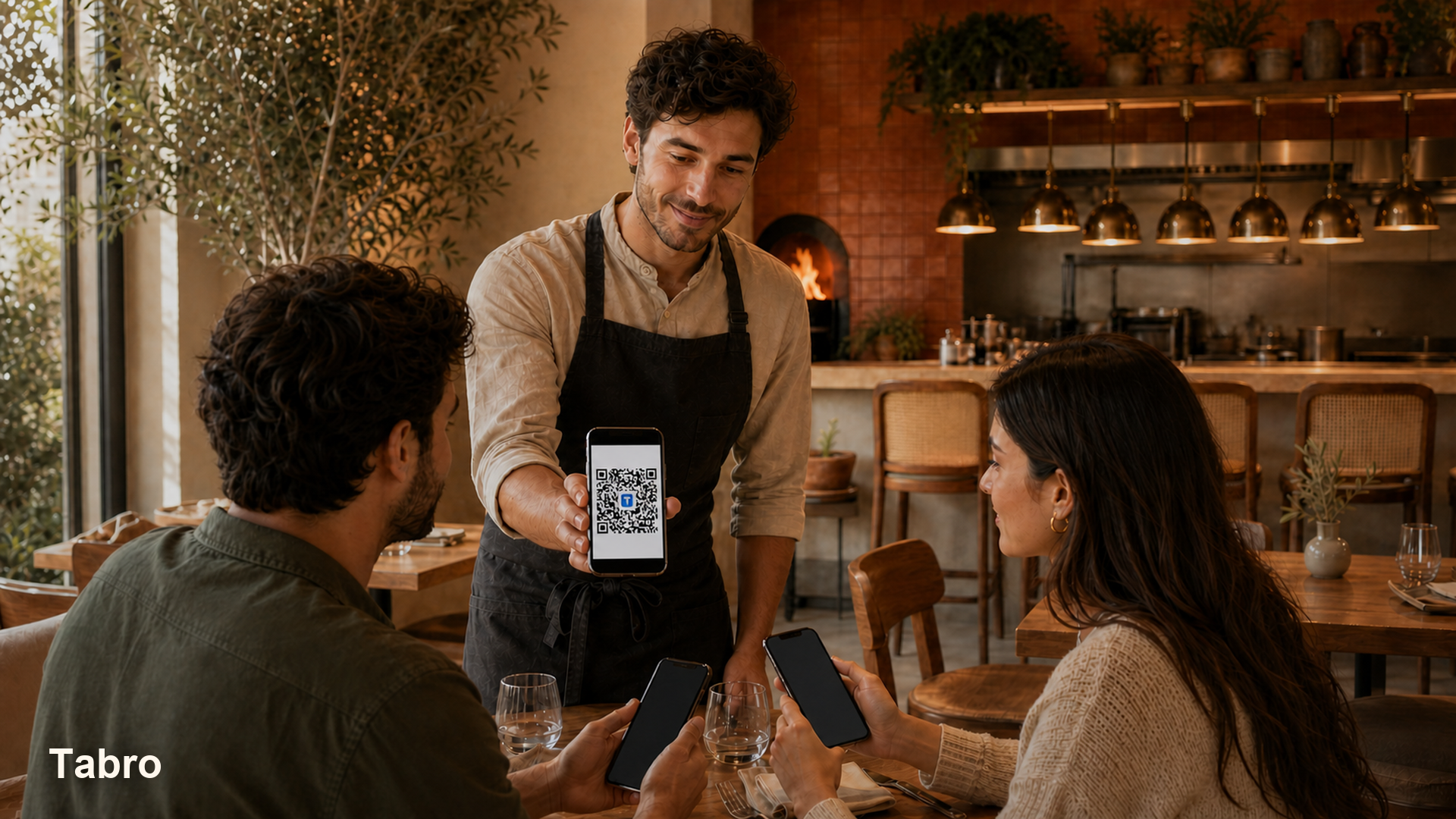
A QR menu does not have to become a complete restaurant ordering system on day one. The simplest useful version is a mobile menu with categories, dishes, prices, photos, and descriptions behind one QR code. You can add table ordering and waiter calls later, after guests and staff are comfortable with the menu itself.
Step 1
Choose the QR menu format
The QR code only stores a link. What matters is the page that opens after the scan. Restaurants usually choose either a PDF file or a mobile digital menu.
PDF menu
Quick to publish, but often awkward on a phone. Guests may need to zoom, and every menu change can require replacing the file and checking that the old link is not cached.
Live digital menu
Designed for phone screens and easier to update. Categories, availability, prices, descriptions, and photos can change without printing a new QR code.
Step 3
Create one public menu link and QR code
For a simple QR menu, you do not need to create a separate code for every table. Share the restaurant menu QR at the entrance, counter, tables, social profiles, or printed materials.
- Create the restaurant and add the first real menu items.
- Open the restaurant QR code in the Restaurants section and test its public link.
- Download or print the same QR code wherever guests should be able to browse the menu.
Common QR menu mistakes
Most QR menu failures come from the page and the physical placement, not from the QR technology itself.
- Linking to a desktop PDF that requires constant zooming.
- Printing the QR code before testing the final public URL on real phones.
- Enabling ordering features before the team has decided how it will receive and handle orders.
QR menu questions
Do I need a different QR code for every restaurant table?
No. For menu-only use, one restaurant QR code can be shared everywhere. Separate table QR codes are useful when orders or waiter calls need table context.
Can I change menu prices without printing a new QR code?
Yes. A live digital menu keeps the same public link and QR code while you update items, prices, availability, photos, or descriptions.
Can guests browse the menu without being able to order?
Yes. Disable guest ordering in the restaurant settings. The menu remains public and interactive for browsing, but ordering controls and waiter actions are hidden.
Can I enable table ordering later?
Yes. Turn guest ordering on, create or rename the tables you need, and place their QR codes. You do not need to rebuild the menu.